

Settings and troubleshooting
Manage accounts, chart preferences, app behavior, journal entries, and storage.
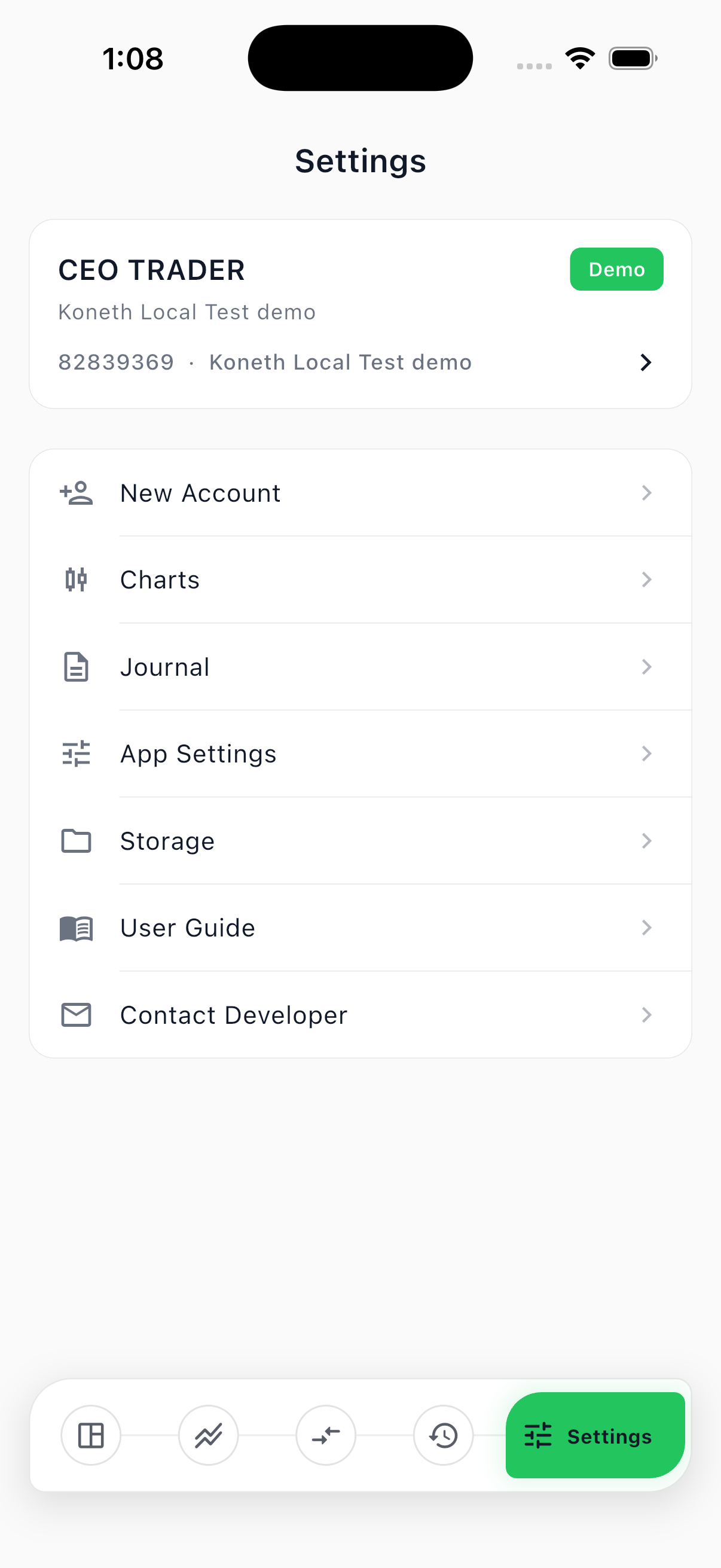
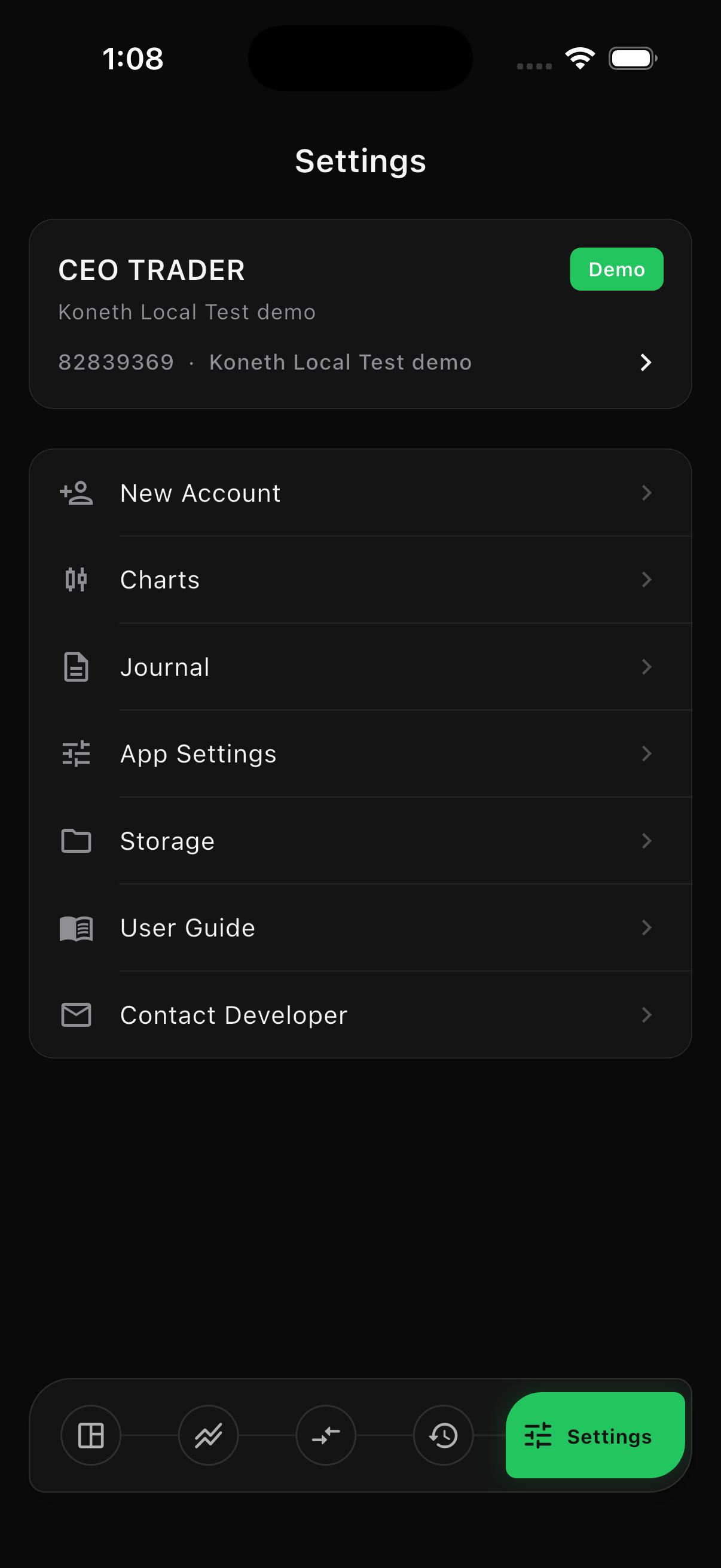
Account card
Section titled “Account card”The first card identifies the active trading account, environment, account number, and server. The organization that operates the server is named above the server name, so an account is never identified by a server name alone. Select the card to inspect the account or switch among saved accounts.
The same pairing appears in Accounts, Saved Accounts, and Account Details, where the organization and the server are listed as separate rows.
Settings functions
Section titled “Settings functions”| Setting | What it does |
|---|---|
| New Account | Connect another Koneth trading account. |
| Charts | Change timeframe, candle style, day lines, trade history, and available overlays. |
| Journal | Review connection, order, execution, and error events recorded by this Terminal. |
| App Settings | Control sounds, haptics where supported, and system, light, or dark theme. |
| Storage | Inspect cached data and clear the market cache without deleting saved accounts or settings. |
| User Guide | Open this documentation. |
| Contact Developer | Prepare a support request for an account problem, bug, or feature request. |
Highlight color
Section titled “Highlight color”App Settings → Highlight Color changes the accent color the Terminal uses for profit values, the buy side, lot sizes, buttons, selected tabs, and navigation. Green is the default.
Pick one of the presets, or choose any color with the hue, saturation, and brightness controls. Your choice is stored on the device and applies to every screen immediately.
This setting changes highlights only:
- Candle colors stay exactly as configured in Charts → Candle Colors.
- The chart grid, watermark, and chart overlays keep their own colors.
- Losing values remain red regardless of the highlight color, so profit and loss stay distinguishable.
Select Reset in the picker to return to the default green.
Connection progress
Section titled “Connection progress”When the Terminal is trying to reconnect, a progress line appears at the top of the account card. Keep the app open while it refreshes the session and market token.
If prices do not resume:
- Confirm the device has internet access.
- Open Journal and read the latest connection message.
- Return to Markets and refresh the market list.
- Sign in again if the session expired.
- Contact the account provider if the server remains unavailable.
Clear cached market data
Section titled “Clear cached market data”Open Storage, then select Clear Cache. This removes cached charts and quotes. It does not remove saved trading accounts, secure saved-login credentials, settings, or journal entries.