

User guide
Koneth Terminal user guide
Learn how to connect a trading account, follow markets, use charts, place trades, and review activity.
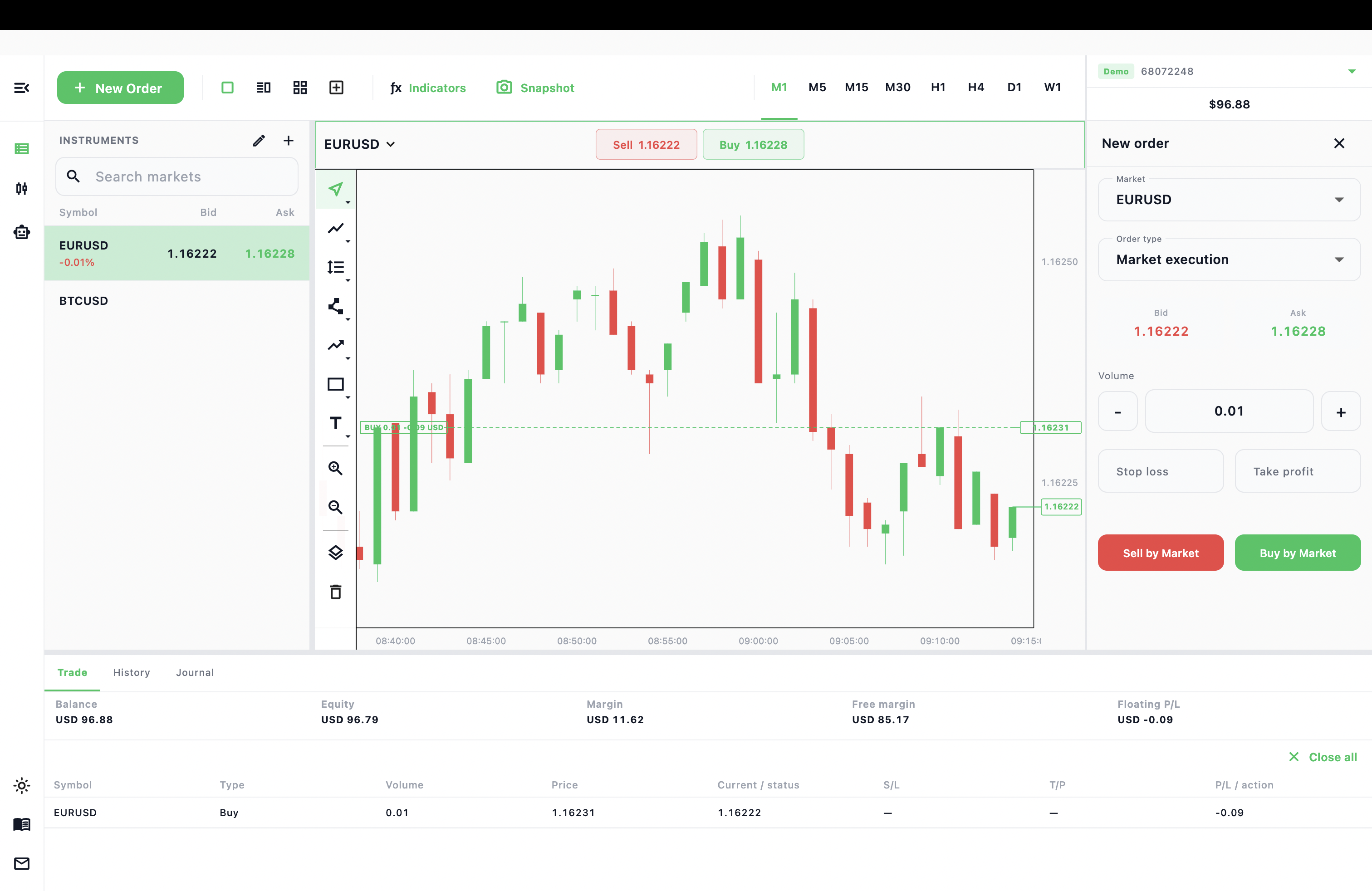
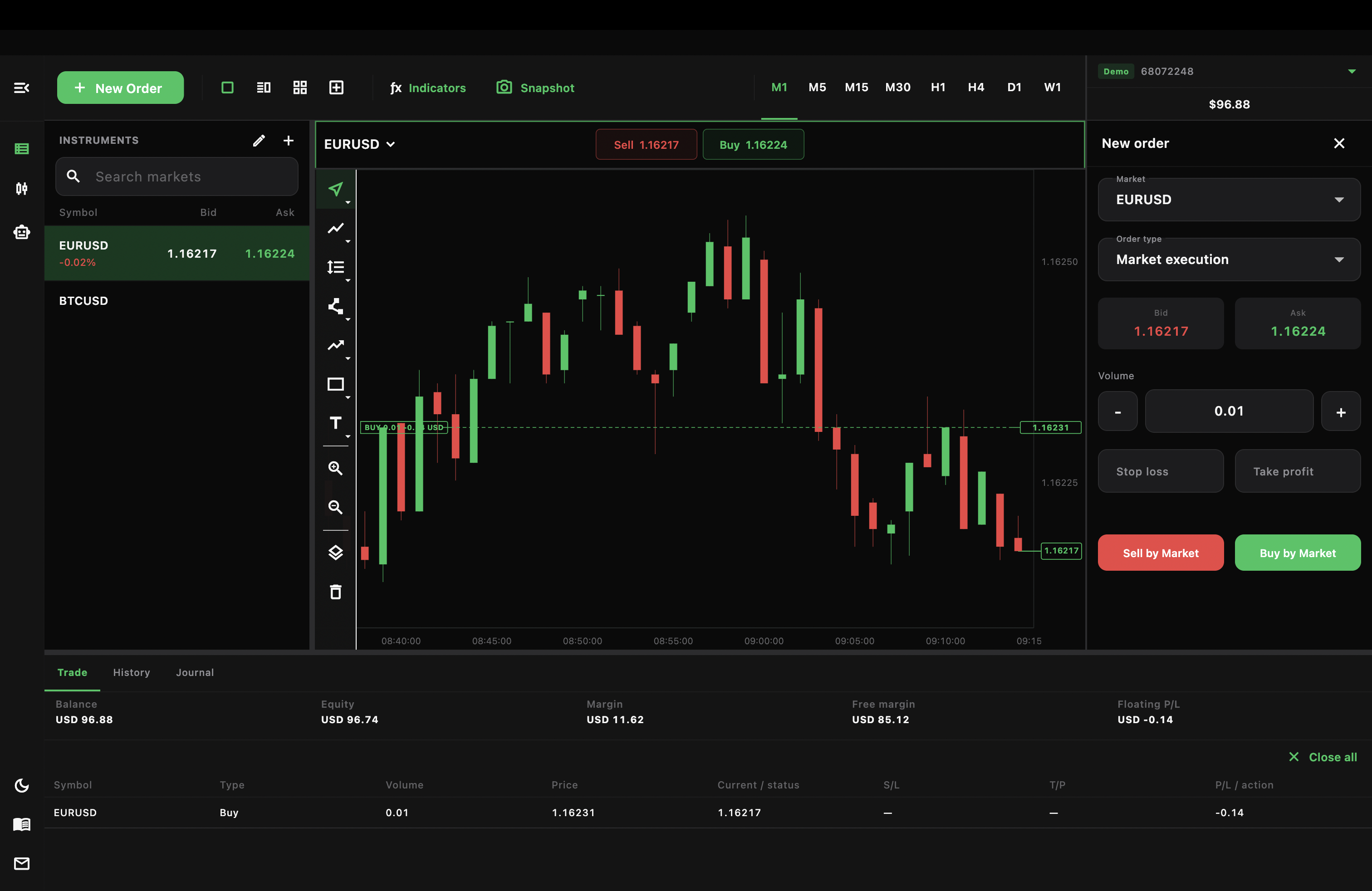
Koneth Terminal is the trading application for Koneth-powered trading accounts. The same trading account works across web, Android, iOS, macOS, and Windows when your provider makes those platforms available.
Start here
Section titled “Start here”Connect your account
Sign in with your server, account number, and trading or investor password.
Choose your platformUnderstand the mobile, web, and desktop layouts.
Place a tradeOpen, modify, partially close, or close a position.
Use chartsChange timeframes, inspect prices, add drawings, and trade from the chart.
Main areas
Section titled “Main areas”| Area | What you use it for |
|---|---|
| Markets | Watch live bid and ask prices and manage your market list. |
| Chart | Analyze candles, change timeframes, and use quick trading. |
| Trade | Monitor account metrics, open positions, and pending orders. |
| History | Review positions, orders, deals, and balance activity. |
| Settings | Manage accounts, chart preferences, journal entries, appearance, and storage. |
Password permissions
Section titled “Password permissions”Your password determines what the current session can do.
| Credential | Read account and positions | Submit or manage trades |
|---|---|---|
| Trading password | Yes | Yes |
| Investor password | Yes | No |
Koneth rejects trading actions from an investor session even if the button or request comes from a custom application.