

Web, mobile, and desktop
Understand how Koneth Terminal is arranged on each supported platform.
Trading behavior and account permissions are the same across platforms. The navigation changes to fit the available screen size.
Android and iOS
Section titled “Android and iOS”Mobile apps use five tabs at the bottom: Markets, Chart, Trade, History, and Settings.
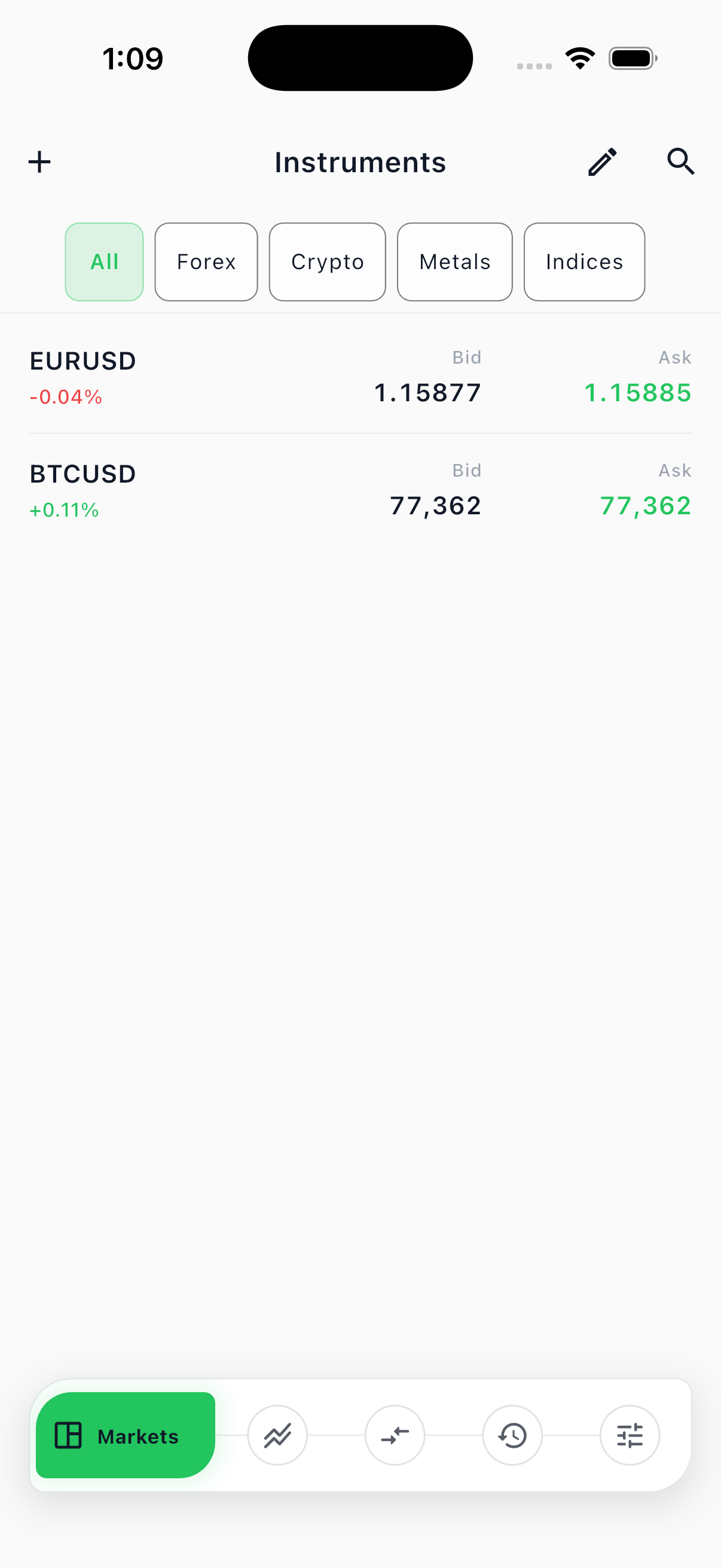
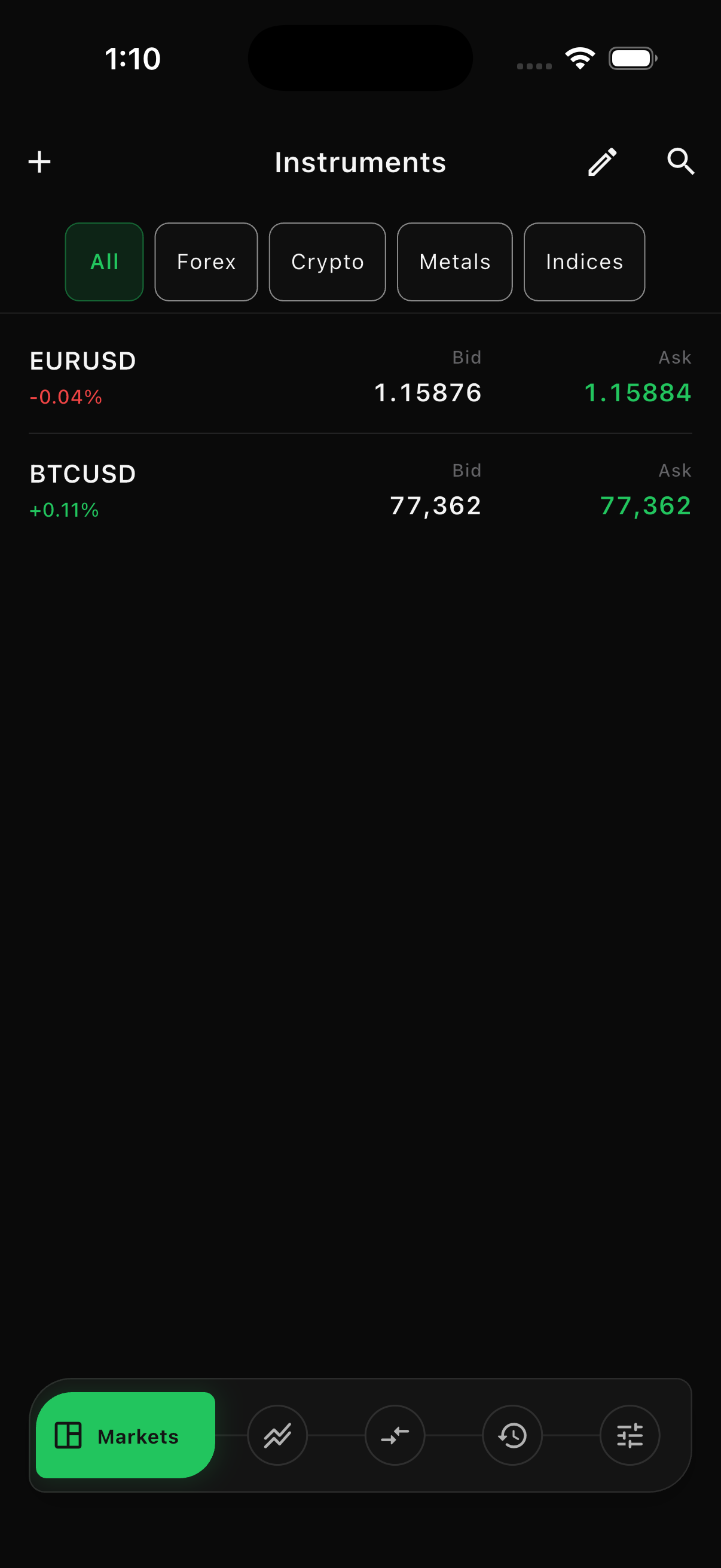
On a phone, tap a row or action button to open a detail sheet. Swipe and pinch directly on a chart to move through time or change zoom.
When your organization enables automated strategies, Settings → Automated Strategies lets you create, start, stop, and monitor server-side KAS strategies. These continue running on the selected trading server after the phone app is closed. See Automated strategies.
The web Terminal uses a workspace layout:
- Market watch on the left
- One or more charts in the center
- New order controls on the right
- Trade, history, and journal panels along the bottom
The layout adapts when the browser becomes narrow. Keep the browser zoom at a comfortable level and allow enough width for the price scale.
Install the web Terminal on a phone
Section titled “Install the web Terminal on a phone”The web Terminal is an installable app, so it can live on your home screen without an app store:
- Android (Chrome): open the Terminal address, then choose Install app or Add to Home screen from the browser menu.
- iPhone (Safari): open the Terminal address, tap Share, then Add to Home Screen, and confirm with Add.
Once installed it opens without browser controls, keeps your saved account the same way the browser does, and still requires your trading password whenever the saved session expires. Remove it the same way you remove any other home-screen app. The Terminal address must be an https:// address for the browser to offer installation.
macOS and Windows
Section titled “macOS and Windows”Desktop applications use the same workspace concepts as the web Terminal and can display multiple charts at once.
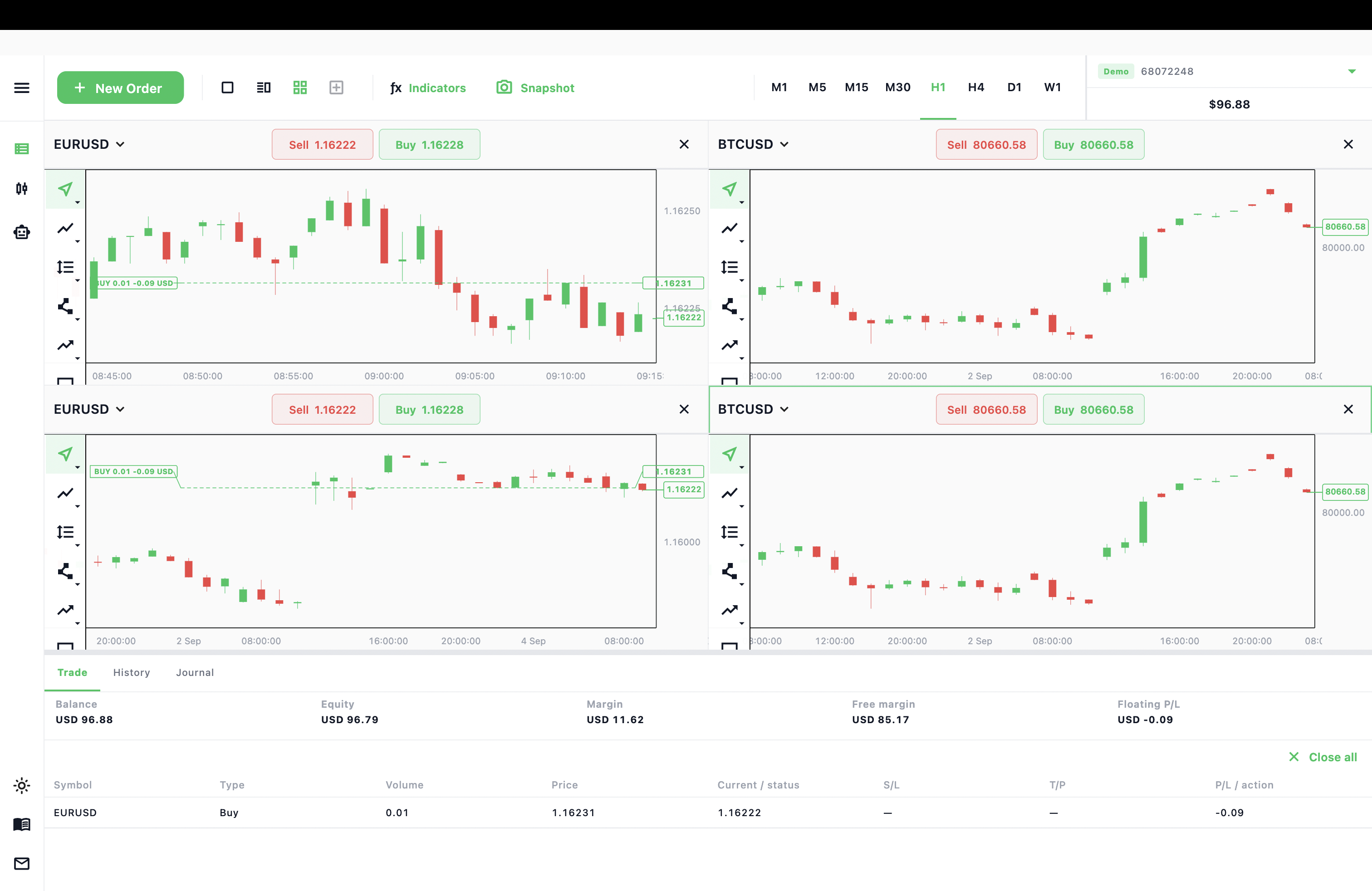
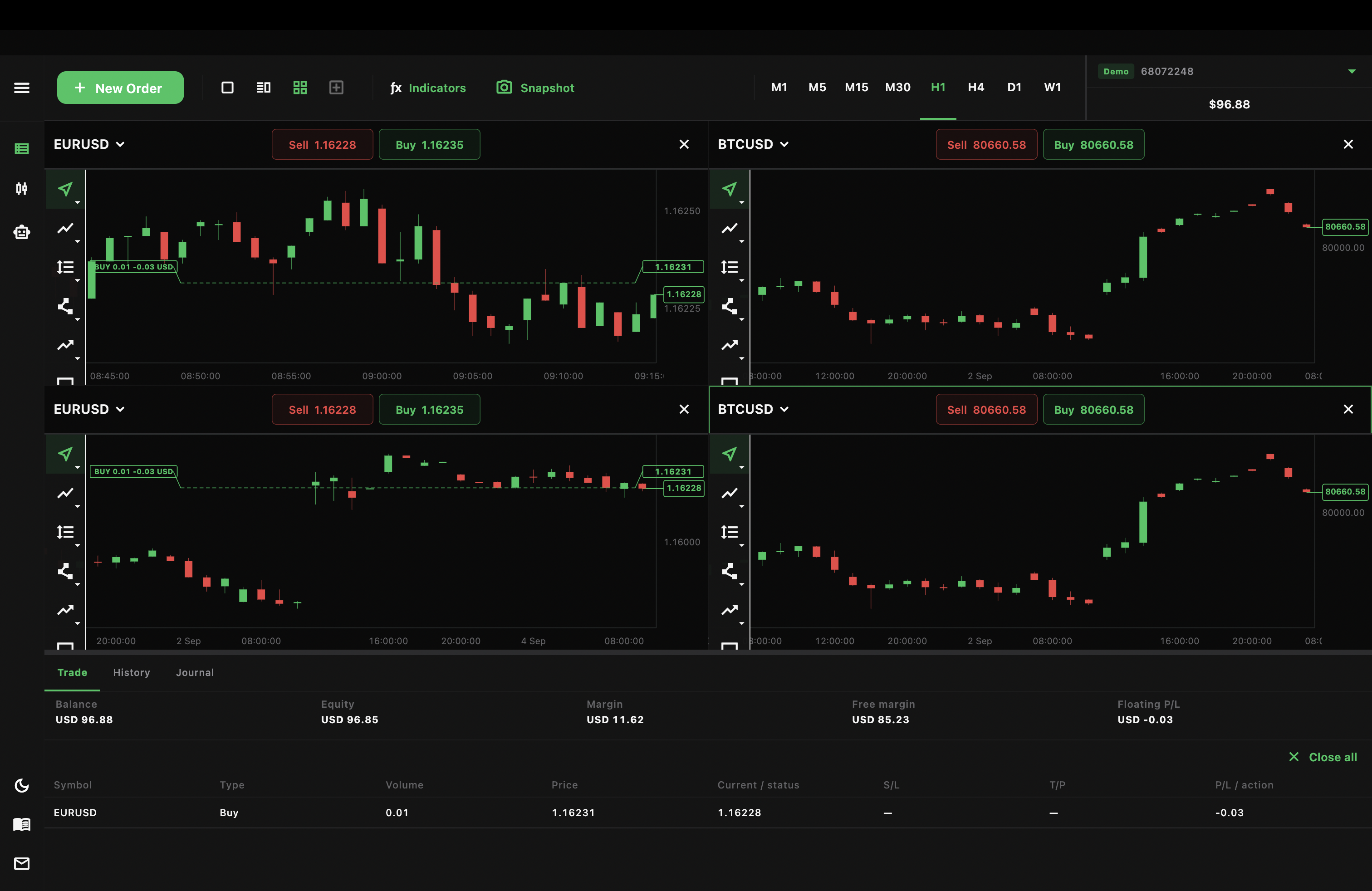
Use the chart layout control in the top bar to switch between one, two, or four charts. Select a chart before changing its symbol or timeframe.